Backgammon Online - User Guide
What is Backgammon Online?
Backgammon Online is a free web app that lets you play the classic board game Backgammon right in your browser - no download, no installation. The app works on desktop, tablet and smartphone and can be installed as a PWA on your home screen.
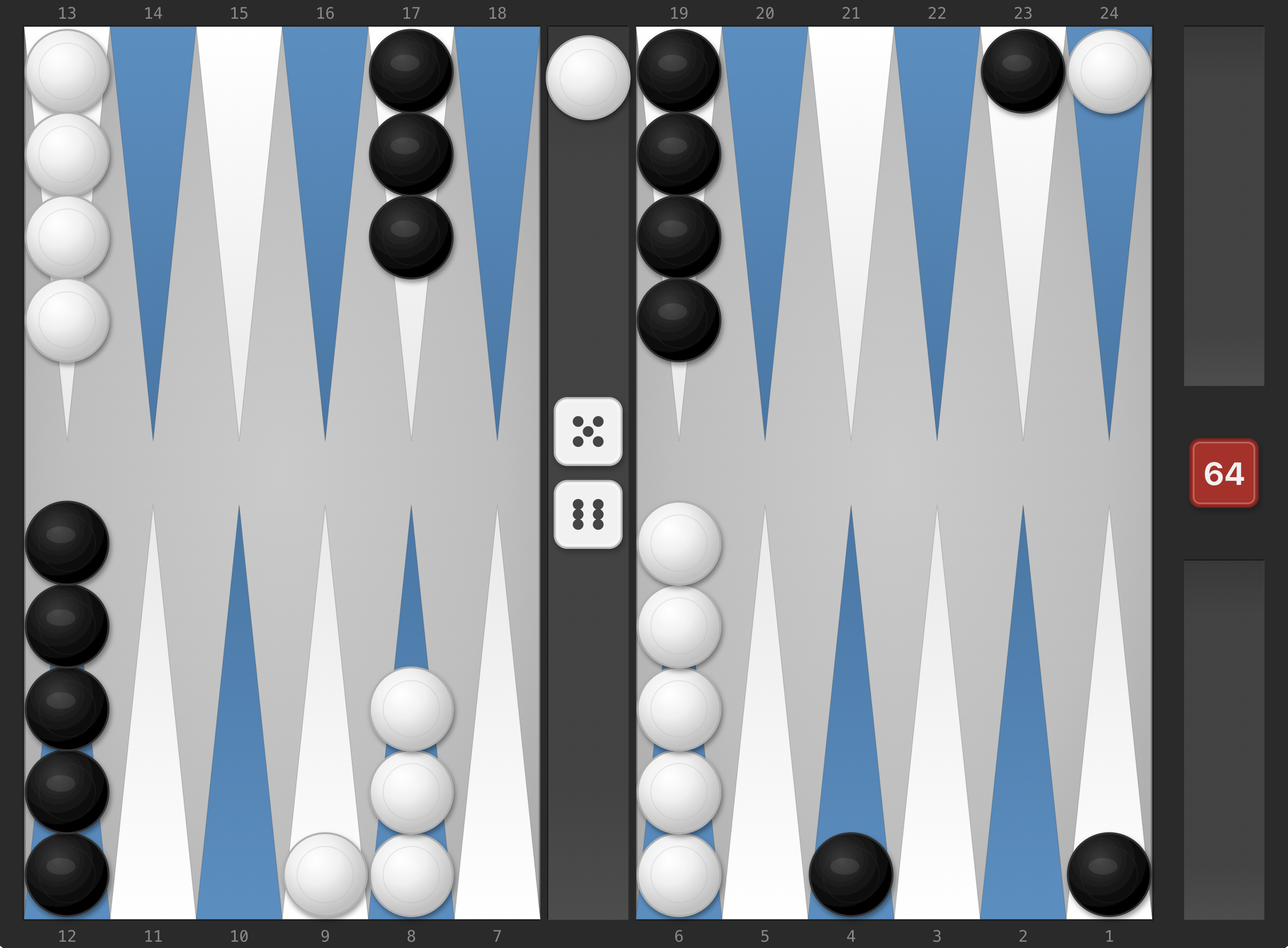
Game Modes
Against the Computer (PvC)
Play against an AI opponent in three difficulty levels:
- Easy: The computer makes random moves (with a slight preference for hitting) - ideal for learning
- Medium: The computer evaluates all possible moves using 16 strategic criteria and chooses the best move
- Hard: The computer thinks one move ahead and calculates the expected value across all 21 possible opponent dice combinations
How to start:
- Click Play vs Computer (home page) or go directly to
/play - Choose a difficulty level (Easy / Medium / Hard)
- The game is created and you are redirected to the board
No account required - just start playing!
Local Two-Player (PvP)
Two players on one device. Take turns rolling and moving - just like on a real board. Perfect for a quick game night.
Online Multiplayer
Play against real opponents worldwide:
- Create an account or log in
- Choose Play Online → Enter Lobby
- In the player lobby you'll see all available players with country flag, ELO rating and status
- Challenge a player → they can accept or decline
- When accepted, the game starts automatically
Player Lobby
- Each player is shown as a card with country flag, username, ELO rating and status
- Icons indicate whether chat and voice chat are enabled (setting from the Games portal)
- Status: Available, Busy, In Challenge, In Game
- You can set yourself to Busy to prevent receiving challenges
- All buttons and icons have tooltips (hover on desktop)
In PvP Games
- The opponent's name with country flag is shown in the sidebar and all overlays
- Opening roll: Both players actively roll one die each. On a tie, the doubling cube increases and both re-roll
- The winner of the opening roll can accept the dice or decline and roll fresh dice
- Live Move Preview: Your opponent sees your moves in real time. Used dice are grayed out for the opponent too
- Text Chat: Real-time chat with "Chat with [Name]" header, emoji picker (Smileys, Gestures, Reactions) and emoticon conversion (e.g.
:)→ 😊). Max 500 characters, sound notification for incoming messages - Voice Chat: "Call [Name]" button in the sidebar. The opponent can Accept or Decline the call. During a call: mute toggle, opponent status and hang up button. When one player hangs up, the other is disconnected automatically
- Chat/Voice disabled: If a player has disabled chat or voice in the lobby, the feature is locked for both players in the game
- Doubling: Click the pulsing doubling cube on the board
- Undo hint: When the opponent undoes a move, a brief notification appears on the board
Registration and Login
Create an Account
- Click Register
- Enter username, email and password
- Done - you can play online immediately
Log In
- Click Login
- Enter email and password
- You stay logged in until you manually log out
An account is only needed for online multiplayer. Computer and local games work without registration.
Game Rules (Summary)
Objective
Move all 15 checkers into your home board and then bear them off. The first player to bear off all checkers wins.
Gameplay
- Roll: At the start of your turn, roll two dice
- Move: Move your checkers according to the dice values
- Doubles: When doubles are rolled (same value on both dice), you can use the value four times
Movement Rules
- Each die represents a separate move
- You must use both dice if possible
- If only one die can be used, the higher one must be played
- A point with 2 or more opponent checkers is blocked
- A single opponent checker (blot) can be hit and goes to the bar
- Checkers on the bar must be re-entered first
Bearing Off
- Only possible when all 15 checkers are in your home board
- A checker is borne off when the dice value exactly matches or is higher than the farthest checker
Doubling Cube
- Before rolling, you can double the stakes (values: 2, 4, 8, 16, 32, 64)
- The opponent can accept (game continues with doubled stakes) or decline (loses the current stakes)
- After accepting, the acceptor owns the cube - only they can re-double next
- The doubling cube starts in the center (both players may double)
Result Types
- Regular win: The loser has borne off at least 1 checker -> 1x stakes
- Gammon: The loser has borne off 0 checkers -> 2x stakes
- Backgammon: The loser has borne off 0 checkers AND still has checkers on the bar or in the winner's home board -> 3x stakes
Points are calculated as: result type multiplier x doubling cube value
Controls
Moving Checkers
- Click-to-Move (Desktop): Click a checker -> possible targets are highlighted -> click target
- Drag & Drop (Desktop): Hold a checker and drag it to the target
- Tap-to-Move (Mobile): Tap checker or triangle -> tap target (no drag on touch devices, more reliable)
- Auto-Move: If a checker has only one possible target, the move is executed immediately on click/tap
- Deselect: Escape key or right-click cancels the selection
Sound Effects
Audio feedback for actions:
- Placing checker: Dull thud
- Rolling dice: Dice rattle
- Invalid move: Triple beep on invalid target click
- No move available: Buzz when the selected checker has no possible moves
- Bar blocked: Sad two-tone when all entry points are blocked (turn is skipped)
- Bar priority: Beep + bounce animation of bar checkers when trying to move other checkers
- Victory fanfare: Ascending C major arpeggio when winning
- Defeat: Descending triad when losing
- Chat message: Short tone for incoming messages
- Voice: Ringing for incoming calls, tones for joining/leaving/declining
Sound can be toggled on/off in the game (setting is saved).
Rolling Dice
When it's your turn to roll, two pulsing dice silhouettes with question marks appear in the board center. Click them to roll.
Doubles: When doubles are rolled, 4 identical dice are displayed vertically on the bar. Each die grays out individually as a move is made - so you can see at a glance how many of the 4 moves remain.
Ending Your Turn
When all dice are used, a green pulsing checkmark appears in the board center. Click it or press Enter to confirm your turn. After 5 seconds the turn is confirmed automatically.
Undoing a Move
- Click a grayed-out die: The die becomes active again and the move is undone
- Ctrl+Z / Cmd+Z or Backspace: Undo the last move
Leaving a Game
Clicking Quit game during an active game shows a confirmation dialog centered over the board. When the game is over (Game Over), the button navigates directly back to the game selection.
Important: Quitting a game against the computer counts as a loss — the current cube value is deducted from your points. Exception: If you haven't made any moves yet, there is no penalty.
Computer Opponent (AI Turn)
After ending your turn, the computer takes over:
- "Computer is rolling..." - the AI dice appear on the board (with dice sound)
- "Computer is thinking..." - short thinking pause (like a real player after rolling)
- "Computer is moving..." - each move is animated individually (with placement sound)
While the computer is playing, all inputs are disabled.
Automatic Pass (Bar Block)
When a player has a checker on the bar and the opponent blocks all 6 entry points (closed home board), the turn is automatically skipped - no rolling needed since no roll can help.
- Player blocked: Message "No moves possible - all entry points blocked!" for 3 seconds
- Computer blocked: Message "Computer is blocked - no moves possible!" for 3 seconds
In both cases, an audio signal is played and the game continues automatically.
Game End
When all 15 checkers of a player are borne off (or when a double is declined), the game over dialog appears:
- Won/Lost display
- Result type: Regular win, Gammon or Backgammon (as colored badge)
- Points detail: e.g. "2 (Gammon) x 4 (Cube) = 8 Points"
- Play Again -> back to difficulty selection
- Back to Home -> back to lobby
Doubling
- Click the pulsing Doubling Cube on the board before you roll
- The computer decides whether to accept or decline
- Easy: Always accepts, never doubles
- Medium: Doubles with clear advantage, accepts from 25% win probability
- Hard: Doubles tactically (also "too good to double"), accepts from 28%
- When the computer wants to double, a dialog appears - you can Accept or Decline
- When declined, the decliner immediately loses with the current stakes
Player Profile and Statistics
Every registered player has a profile with:
- ELO Rating: Starting value 1500, rises with wins, falls with losses
- Games Won/Lost
- Game History
Leaderboard
The best players are displayed in the leaderboard sorted by ELO rating.
Languages
The app is available in:
- German
- English
The language is automatically detected but can be changed at any time via the Language Switcher (DE/EN buttons in the header). The current language is highlighted. When switching, the current page is preserved - only the URL and content change.
Dark Mode
The app supports three display modes:
- Light - Standard display
- Dark - Easy on the eyes in low light
- System - Automatically follows the operating system setting
Toggle via the Sun/Moon icon in the header (desktop) or in the hamburger menu (mobile). The setting is saved in the browser and persists across sessions. The game board keeps its original colors in both modes.
PWA - Install as App
Backgammon Online can be installed like a native app on your home screen:
iOS (Safari)
- Open the site in Safari
- Tap the Share button
- Select "Add to Home Screen"
Android (Chrome)
- Open the site in Chrome
- Tap the installation prompt (or: Menu -> "Install app")
Desktop (Chrome/Edge)
- Click the install icon in the address bar
After installation, the app launches in fullscreen mode without the browser bar.
Navigation
The app has a header with navigation on all pages except the game board (which uses the full screen).
Desktop: Logo + navigation links with icons (Home, Play, Rules, Leaderboard) + language switcher (DE/EN) + Dark Mode toggle (Sun/Moon)
Mobile: Logo + hamburger menu (toggle panel at full width with navigation, language selection with flags and theme selection with icons - arranged vertically)
The footer contains: Copyright, Rules, Imprint, Privacy and Terms.
Available Pages
| Page | DE URL | EN URL |
|---|---|---|
| Home | /de | /en |
| Play | /de/spielen | /en/play |
| Play Online | /de/online | /en/online |
| Player Lobby | /de/online/lobby | /en/online/lobby |
| Rules | /de/regeln | /en/rules |
| Leaderboard | /de/rangliste | /en/leaderboard |
| Imprint | /de/impressum | /en/imprint |
| Privacy | /de/datenschutz | /en/privacy |
| Terms | /de/agb | /en/terms |
FAQ
Do I need an account? No, for games against the computer or local two-player, no account is needed. Only online multiplayer requires an account.
Is the app free? Yes, completely free and ad-free.
Can I play on my phone? Yes, the app is optimized for all screen sizes.